Permits & interconnection · Command Center

Permits filed without the chase.

Permits generate automatically when a deal is signed, with fees from the permit office’s own schedule. Every requirement, correction, inspection and interconnection form is tracked in the project — and an install-readiness board shows exactly what is blocking each job.

Generated at signingShared permit office profiles14-day expiry alerts
3

permits tracked per project — building, electrical, utility

6

install-readiness gates checked before you schedule

14

days’ warning before a permit expires

Auto

permits created the moment a deal is signed

What’s included

From signed to install-ready.

The paperwork between the sale and the install, handled in the record.

Built in

Generated at signing

Building, electrical and utility permits are created automatically when the contract is signed, with fees looked up from the permit office.

Shared permit office profiles

Requirements, fees and timelines for each permit office (AHJ). Companies suggest updates; they are reviewed before they apply to everyone.

Permit packets

Printable permit packet PDFs — single or bundled — from the project, plus a permit form library per office.

State forms, filled in

Building and electrical permits print on New Jersey’s actual UCC forms (F110 and F120), filled with the project’s data.

Parcel lookup

Block, lot and qualifier are looked up from the site address (New Jersey) and filled into the permit forms.

Every status tracked

Submitted, corrections, approved, inspection scheduled, passed or failed — for each permit, with dates.

Built in

Expiry alerts

A daily check warns you 14 days before any permit expires.

Interconnection form library

Keep each utility’s interconnection forms in your own library and attach them to the right projects.

Install-readiness board

Survey, design, permit, utility and materials checked in one view, with a clear can-schedule verdict for every job.

Homeowners kept informed

The status timeline gives homeowners a projected install date, so they stop calling to ask.

Real screens

See it in the product.

Live app screens from a demo solar company — click any screen to see it full size.

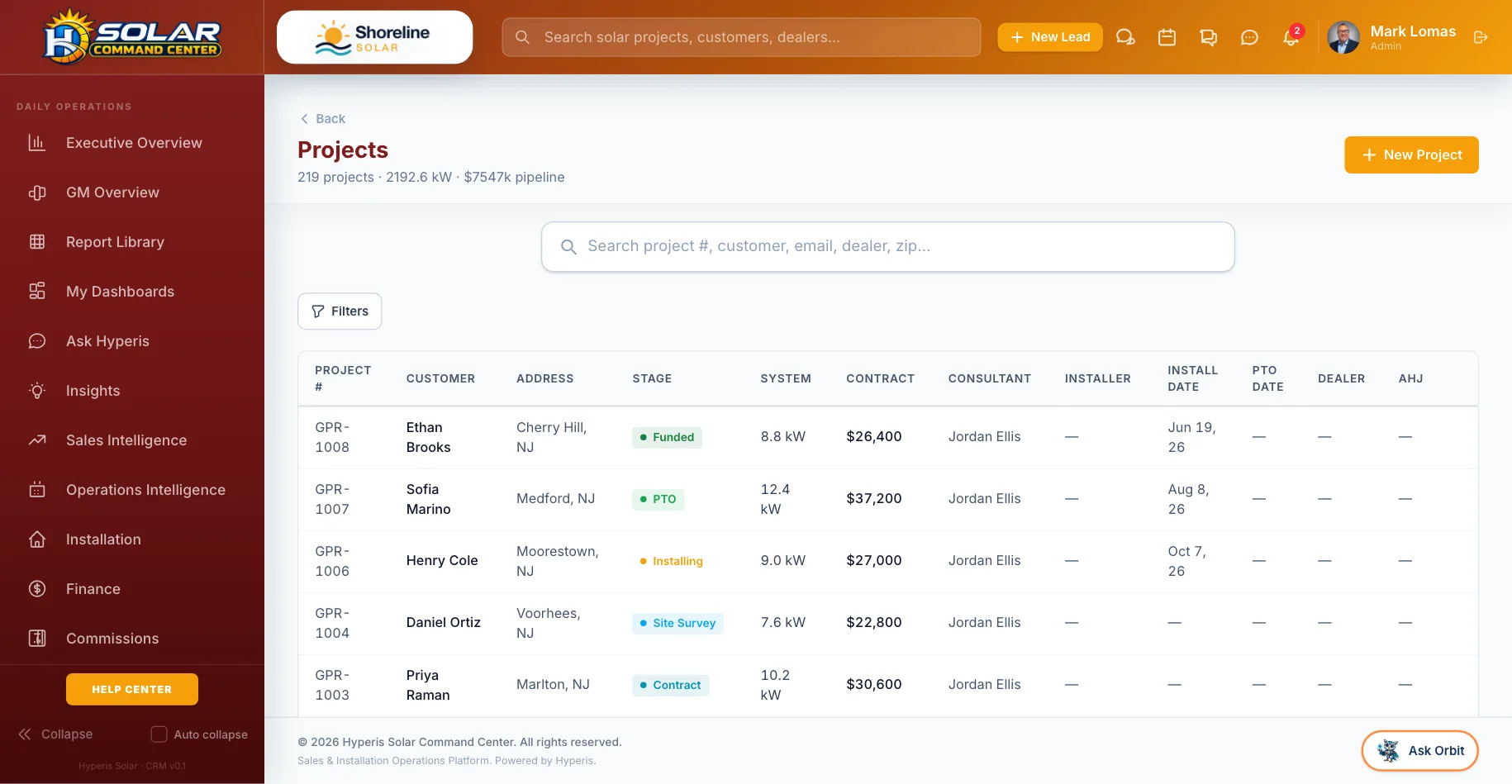
Command Center: Projects — Design to PTO with installer, permit office and dates
ProjectsDesign to PTO with installer, permit office and dates
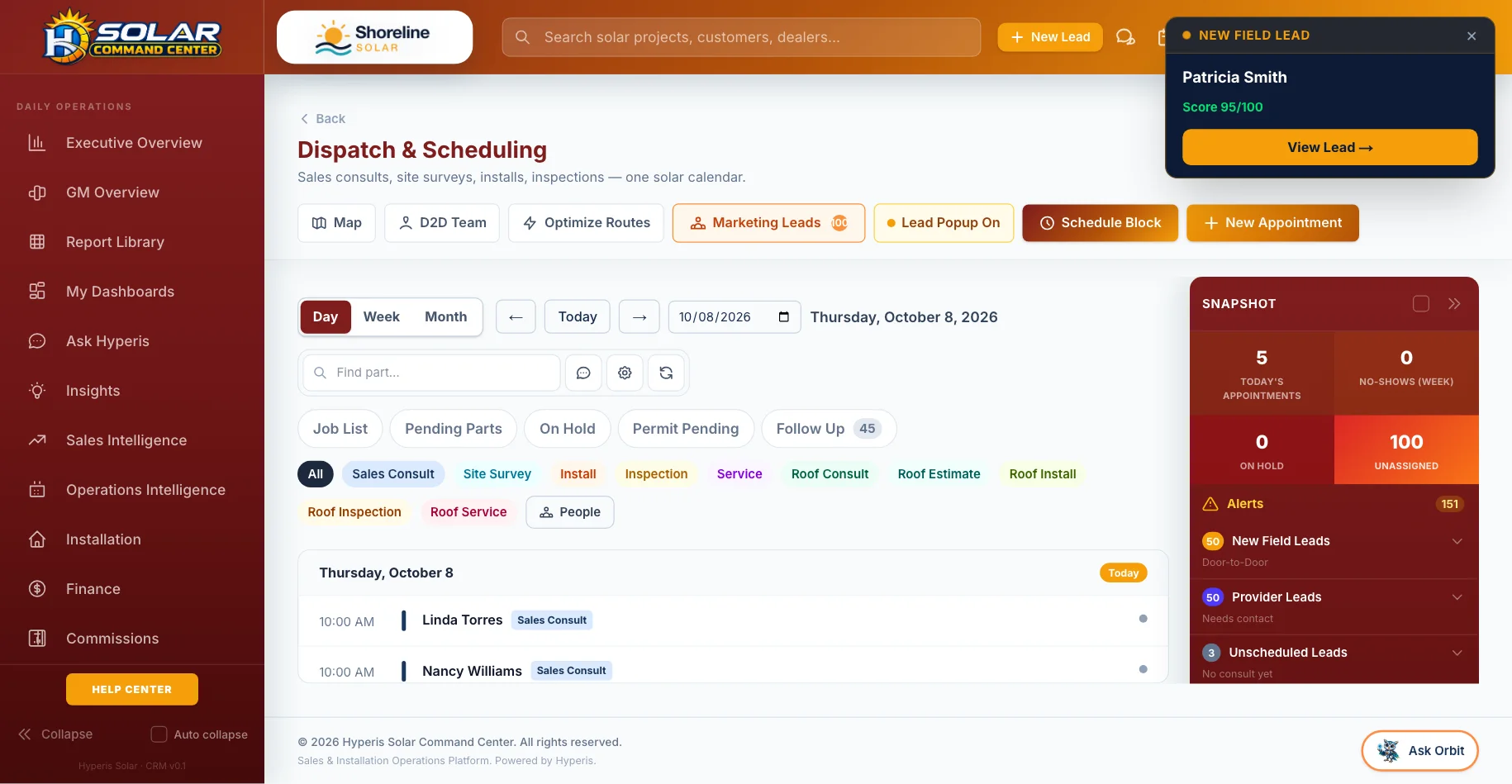
Command Center: Dispatch & scheduling — Consults, surveys, installs and inspections on one calendar
Dispatch & schedulingConsults, surveys, installs and inspections on one calendar
How it works

Three steps, no spreadsheets.

1

Deal signed

Permits are generated automatically with the permit office’s fees and requirements.

2

Track to approval

Corrections, approvals and inspections are logged per permit, with expiry warnings.

3

Ready to install

The readiness board turns green when survey, design, permits, utility and materials are done — then dispatch schedules the crew.

Where you’ll find it

Part of the whole platform.

It runs on the same data as everything else in Hyperis Solar — nothing to connect, nothing to re-key.

Hyperis Solar Command Center
Flagship platform

Sales & installation operations platform

Run the entire solar operation from first lead through design, permitting, installation, funding, PTO, service and customer experience.

  • Sales CRM, pipeline & proposals
  • Design, permitting & utility workflow
  • Dispatch, crews & inspections
  • Equipment, orders & job costing
  • Commissions, invoicing & QuickBooks
  • Dashboards, KPIs & report library
Explore Command Center
FAQ

Questions, answered.

Do you submit permits for us?

Your team still submits to the permit office. Hyperis creates the permits, prepares the packets, tracks every status and warns you before anything expires.

Where do permit office requirements come from?

A shared database of permit office profiles. When your team finds a change, they suggest it, and it is reviewed before it updates for everyone.

Is this in Solar Pro?

Permits are part of Command Center’s installation operations. Solar Pro is for sales organizations and leaves installation operations to the installer.

See it with your pipeline.

A 30-minute walkthrough with someone who knows solar. Bring your questions — we’ll show you the real screens, not slides.